Trade Screenshots in Your Journal: A Practical Way to Review What Actually Happened
A practical Reflectrade guide to trade screenshots in trading journal for traders who want clearer journals, safer review habits, and better performance analys
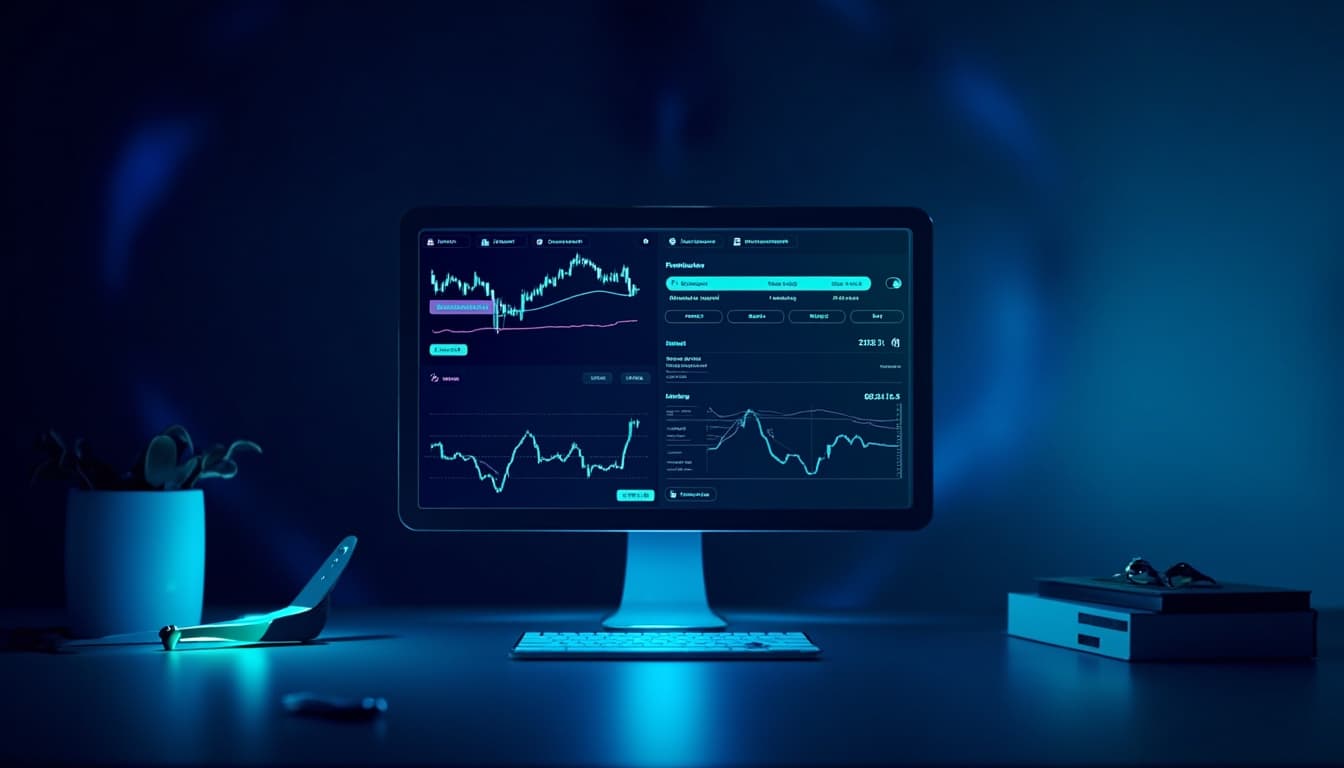
Most trading journals are full of numbers. PnL. R-multiples. Win rate. Profit factor. Hours and minutes. Those columns matter, and they are the backbone of any serious performance review. But when a review session gets hard - when you are trying to understand why a setup worked on Tuesday and failed on Thursday - numbers alone usually do not tell the whole story.
That is where trade screenshots come in.
A trade screenshot is the visual record of what your chart actually showed at the moment you made a decision. It is the entry candle, the indicators you were watching, the level you reacted to, the stop placement, and the context around the trade. Saved next to your written note and your trade data, a screenshot turns an entry in your journal from a row of numbers into a complete record of what you saw and what you did.
This guide walks through a practical, no-hype workflow for using trade screenshots inside a trading journal like Reflectrade so your reviews get faster, clearer, and more useful.
Why Screenshots Belong in a Trading Journal
Numbers tell you what happened. Screenshots help you remember why it happened.
When you log a trade without a screenshot, you are relying on your memory of the chart. Memory is unreliable after a few hours, and it is almost useless a week later. You might remember the direction. You rarely remember the exact setup, the candle structure, the news candle that triggered you, or whether the level you marked up the night before was actually where you entered.
Saving the chart at the moment of decision and again at exit gives you a forensic record. You can revisit it later and compare what you thought you saw with what was actually on the screen. That gap - between your memory and the chart - is where most review mistakes happen.
This is also why many traders who are serious about reviews treat screenshots as a standard part of their journal. Tools like TradeZella, Tradervue, and Trademetria all include screenshot storage as a core feature for a reason: it makes post-trade review possible in a way that plain trade logs cannot. Pair those screenshots with the kinds of metrics described in resources like the Ultimate Guide to the 10 Most Important Trading Metrics and your review process becomes much more grounded in evidence.
A Simple Screenshot Workflow for Each Trade
You do not need a complicated system. You need one that you will actually do every day. Here is a workflow that fits comfortably inside Reflectrade's trade journal workflow and that you can run on any device.
Step 1: Capture the Setup Before You Click
Before you place the order, snap a screenshot of the chart exactly as you see it. This is your "decision screenshot." It should show:
- The timeframe and instrument.
- The setup or pattern you are reacting to.
- Key levels, indicators, or annotations.
- The candle that triggered your decision.
If you change your mind and take the trade on a different candle, take a second screenshot of the new setup. The point is to record what was on the screen when you pulled the trigger, not what you saw five minutes later when you started writing the journal entry.
Step 2: Capture the Entry Fill
As soon as the order fills, grab a screenshot of the entry. This is where you can see if the price action you expected showed up or if the fill was messy. These two screenshots together are often enough to reconstruct a clean view of the trade later.
Step 3: Capture the Exit
When you close the trade - whether at target, stop, or breakeven - save one more screenshot. This one shows the market context after the trade. Many traders skip this and regret it later, because the exit screenshot often holds the most useful review information: did price continue in your direction, did it reverse sharply, did it do nothing?
Step 4: Attach the Screenshots to the Journal Entry
Drop the screenshots into the trade entry inside Reflectrade alongside the basic trade data. The screenshot sits next to your notes, your tags, and your strategy labels. Now the entry is not just a row in a table - it is a complete record.
If you are not already using a journal that supports inline screenshots, start a free trading journal and attach the three screenshots to each trade you log.
What to Write Next to Each Screenshot
A screenshot without a note is just a picture. A note without a screenshot is just an opinion. Together, they are a proper trade record.
Keep the writing short and specific. Some things that work well as a brief note next to each screenshot:
- Decision screenshot note: What setup were you trading? What level or condition had to be true for this trade to exist? Were you already planning to take it, or did it appear in real time?
- Entry screenshot note: Did the entry happen the way you expected? Were you calm, rushed, or hesitating? Did you follow your plan on size?
- Exit screenshot note: Why did you exit? Was it target, stop, time-based, or a discretionary decision? What did the market do immediately after?
You do not need long paragraphs. A few honest sentences next to each screenshot will give you far more to work with during a weekly review than a fully filled-out spreadsheet entry written hours later.
How Screenshots Change Your Weekly Review
Once you have two or three weeks of trades logged with screenshots, your weekly review becomes a different activity. Instead of staring at a list of green and red numbers and guessing why a week felt off, you can scan the screenshots quickly.
Patterns that only show up visually start to appear. You notice that most of your losing trades came from setups where you skipped a checklist step. You notice that your best trades clustered around a specific time of day or a specific type of session. You notice that several trades were entered inside news candles where the chart was unreadable - and that almost all of those trades lost money.
These are the kinds of patterns that metrics like expectancy and profit factor describe in aggregate but cannot explain on their own. Sources covering performance analytics, such as Key Trading Metrics to Track in Your Journal and analyses like Key Metrics for Trading Performance Analysis, consistently emphasize that metrics are only useful when paired with qualitative context. Screenshots provide that context.
A useful weekly ritual is to open every trade from the week, scan the three screenshots, and ask three questions:
- Was the setup the one I planned to trade, or was it something improvised?
- Did I follow my rules on entry, management, and exit?
- What does the exit screenshot tell me about whether my read of the market was reasonable?
That is enough. You can add more structure later if you want, but those three questions, asked against real screenshots, will surface most of what your week actually contained.
Common Mistakes to Avoid With Trade Screenshots
The point of this workflow is to build a clean record you can trust. A few habits get in the way of that.
- Saving only winning trades. A journal full of screenshots from your best days tells you nothing about what to fix. Be just as careful with losers.
- Annotating after the fact. Drawing arrows and levels onto a screenshot hours after the trade is useful, but it is not the same thing as saving the original chart. Keep the clean screenshot and the annotated one if needed, but do not pretend the annotated version is what you saw live.
- Skipping screenshots on small trades. It is tempting to attach screenshots only to big winners and big losers. The small, "boring" trades are often where your habits show up most clearly.
- Letting screenshots pile up in a folder. A folder of PNGs on your desktop is not a journal. Screenshots only become useful when they are attached to the corresponding trade entry with a short note.
Screenshots, Tags, and Strategies: Putting It All Together
Screenshots are most powerful when they are part of a structured journal, not a standalone archive. If you already use tagging or strategy labels, attach your screenshots to the same entry so you can filter by setup later. Inside Reflectrade, you can pair each screenshot with the strategy tag and the daily anchor you were working from, so a single trade entry contains the visual, the data, the rule, and the plan.
That is the kind of record that makes reviews faster and decisions more honest. You stop arguing with your memory and start looking at what your charts actually showed on the day.
If you have been keeping trades in a notebook or a basic spreadsheet, the upgrade is small: three screenshots per trade, three short notes, and a weekly review built around them. Done consistently, that is enough to change how you learn from your own trading.
If you are ready to try it, start a free trading journal and attach screenshots to your next few trades. After two weeks, scroll back through the entries with your screenshots attached, and you will see your trading in a way that numbers alone never quite showed you.
Disclaimer
Reflectrade is a journaling and analytics tool, not financial advice. Trading involves risk, and past performance does not guarantee future results.
This article is educational and informational only and is not investment advice. This article is educational and informational only and does not constitute investment advice. You are responsible for your own trading decisions and should do your own research before acting on anything discussed here.